
How to use Grok on Ray-Ban Meta Glasses
This guide shows how to connect Grok in MetaLensAI using your xAI API key. Add the key once, select Grok as your AI Platform, and start Grok voice conversations or picture analysis from Ray-Ban Meta smart glasses.
Estimated setup time: 2-3 minutes after your xAI Console account is ready.
Step 1 - Create your xAI API key
Grok in MetaLensAI uses the xAI API. Sign in to the Grok / xAI Console, create an API key from the API Keys page, and make sure your account has the credits, billing status, or model permissions required for Grok API usage.
- Open Grok / xAI Console API Keys.
- Sign in or create an xAI account.
- Create a new API key from the API Keys page.
- Copy the key and keep it ready for MetaLensAI.
- If xAI asks for credits or billing before API use, complete that setup in Console.
Important: Do not share your xAI API key publicly. Treat it like a password.
Step 2 - Choose Grok in MetaLensAI
- Open MetaLensAI on your Android phone.
- Go to Settings / AI Settings.
- Open AI Platform.
- Choose Grok.
Step 3 - Add the xAI API key
- Still in Settings / AI Settings, open xAI API key.
- Paste the key copied from xAI Console.
- Save changes.
- If the app shows a Grok Model option, keep grok-voice-latest unless you intentionally want another supported Grok voice model.
- Tap Check Connection. If you see Connection OK, the saved xAI key and selected Grok model can connect to the realtime service.
If Check Connection fails with an access or 403 error, open xAI Console and verify the API key, credits, billing status, and API permissions for Grok Voice.
If it fails with an invalid key error, create a fresh API key, copy it completely, save it again in MetaLensAI, and test once more.
Step 4 - Start Grok on smart glasses
- Return to the MetaLensAI Home screen.
- Tap Start Conversation to launch a Grok voice conversation.
- Use your Ray-Ban Meta glasses microphone and speakers for hands-free questions and answers.
- Use Picture Analysis if you want Grok to analyze a photo from your glasses view.
- If you use Wake Word, confirm the route is set to Start Conversations.
Live Vision AI is not available for Grok in MetaLensAI. Choose ChatGPT or Gemini when you need real-time visual insights from the glasses camera.
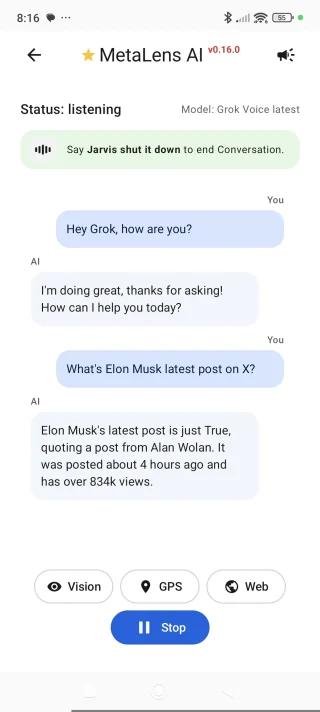

MetaLensAI supports hands-free AI conversations on Ray-Ban Meta smart glasses.
Grok X Search and Web Search
Grok conversations in MetaLensAI can use xAI's native X Search to answer questions about current posts, public conversation, and what people are saying on X.
- X Search is part of the Grok conversation flow in MetaLensAI.
- General Web Search can be enabled in Settings / Advanced AI Settings / Conversations.
- Use Web Search for current web information, recent events, product availability, public facts, or time-sensitive questions.
- Use GPS together with Grok when your question depends on where you are.
What users can ask
"What did Elon Musk post today?"
Political news
"What are the top political stories on X today?"
Real user reports
"What are people saying about Ray-Ban Meta glasses this week?"
Grok setup FAQ
Can I use Grok hands-free on Ray-Ban Meta smart glasses?
Yes. Select Grok as the AI Platform in MetaLensAI, save a valid xAI API key, then start a Conversation from the Home screen or Wake Word route.
Does Grok require a MetaLensAI membership?
Yes. Grok is available to MetaLensAI Members only. If Grok selection is blocked, confirm your access in the app before continuing.
Does Grok support Picture Analysis?
Yes. MetaLensAI can use Grok for single-shot Picture Analysis with your saved xAI API key.
Does Grok support Live Vision AI?
No. Live Vision AI is not available for Grok. Use ChatGPT or Gemini for that module.
Related AI guides
- ChatGPT setup for MetaLensAI - connect an OpenAI API key and use ChatGPT voice conversations on Meta smart glasses.
- Gemini setup for MetaLensAI - connect a Google AI Studio API key and use Gemini voice conversations, Live Vision AI, and picture analysis.
- Gemini Web Search setup - enable current web information in Gemini conversations.
- Wake Word setup - start ChatGPT, Gemini, or Grok hands-free with a wake phrase.
- GPS on Meta Glasses - let AI use location context for ETA, nearby places, and travel guidance.