
How to Stream Ray-Ban Meta Glasses to Facebook
Share a live, first-person view from your Ray-Ban Meta glasses on Facebook. Connect MetaLensAI to Facebook Live Producer using your stream key, then preview your video and go live.
How do I stream Meta glasses to Facebook?
In MetaLensAI, open Settings → Streaming → Streaming Platform and select Facebook. On your computer, open Facebook Live Producer → Set up live video → Streaming software. Copy the Stream key into Facebook Stream Key in MetaLensAI and save. Start streaming from the app, check the preview in Facebook and click Go live.
This is the direct MetaLensAI setup. OBS is not required.
Before you start
- Connected glasses: pair your Ray-Ban Meta glasses with your Android phone. See supported devices.
- MetaLensAI v0.170 or later: direct Facebook streaming is available from this version. If needed, follow the installation guide and get the latest app from the Home page.
- Facebook Live access: sign in to the account you will use and make sure Live Producer lets you create a live video for your chosen profile or Page.
- A computer and a stable connection: use the computer for Live Producer and keep your phone connected to reliable Wi-Fi or mobile data.
Step 01 · On your phone
Select Facebook in MetaLensAI
- Open MetaLensAI.
- Go to the Settings tab.
- Scroll to the Streaming section.
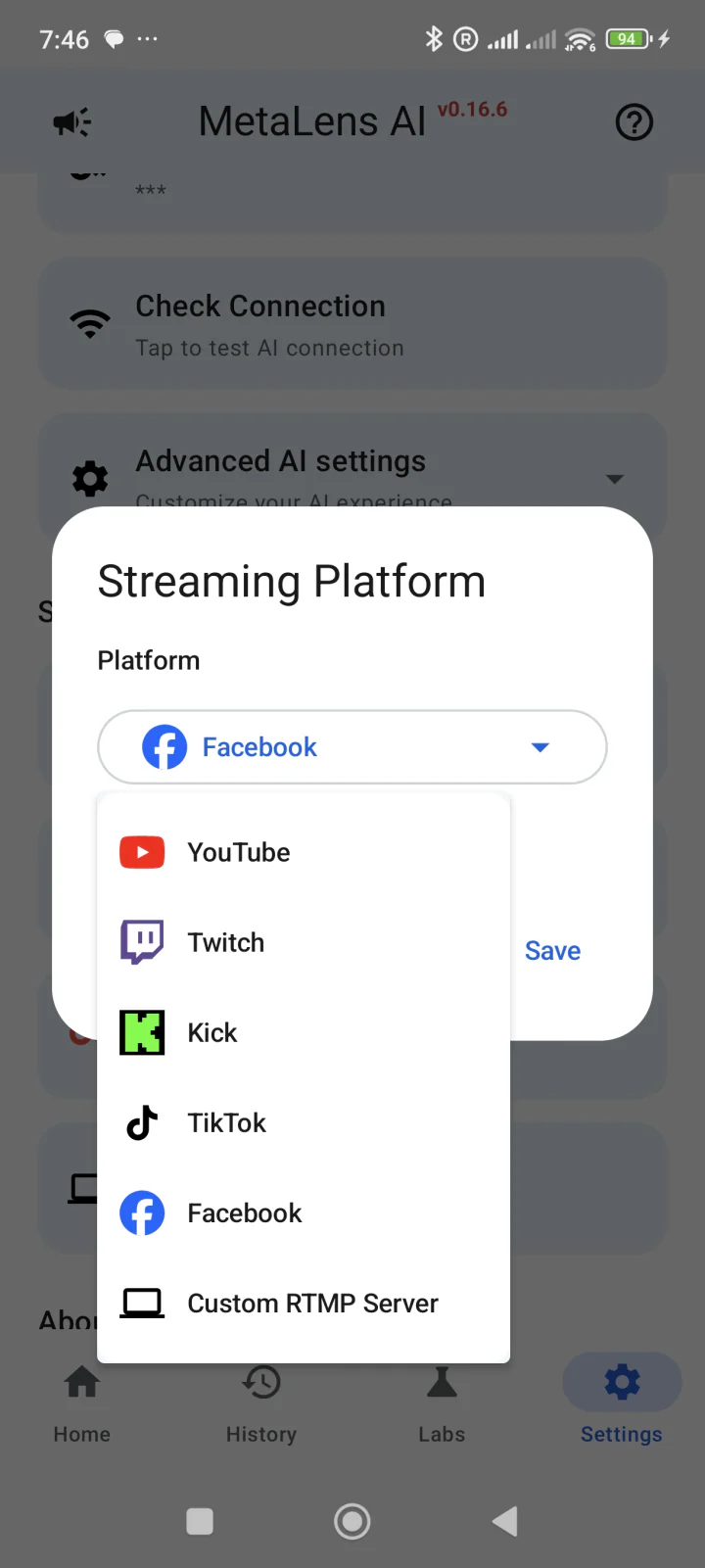
- Tap Streaming Platform and open the platform dropdown.
- Select Facebook and tap Save.
You will return to these settings to enter your Facebook Stream Key after copying it from Live Producer.
Step 02 · On your computer
Open Facebook Live Producer
Open Facebook Live Producer in your computer’s browser while logged into Facebook. Choose the destination under Choose where to post, then click Set up live video in the Go live card.
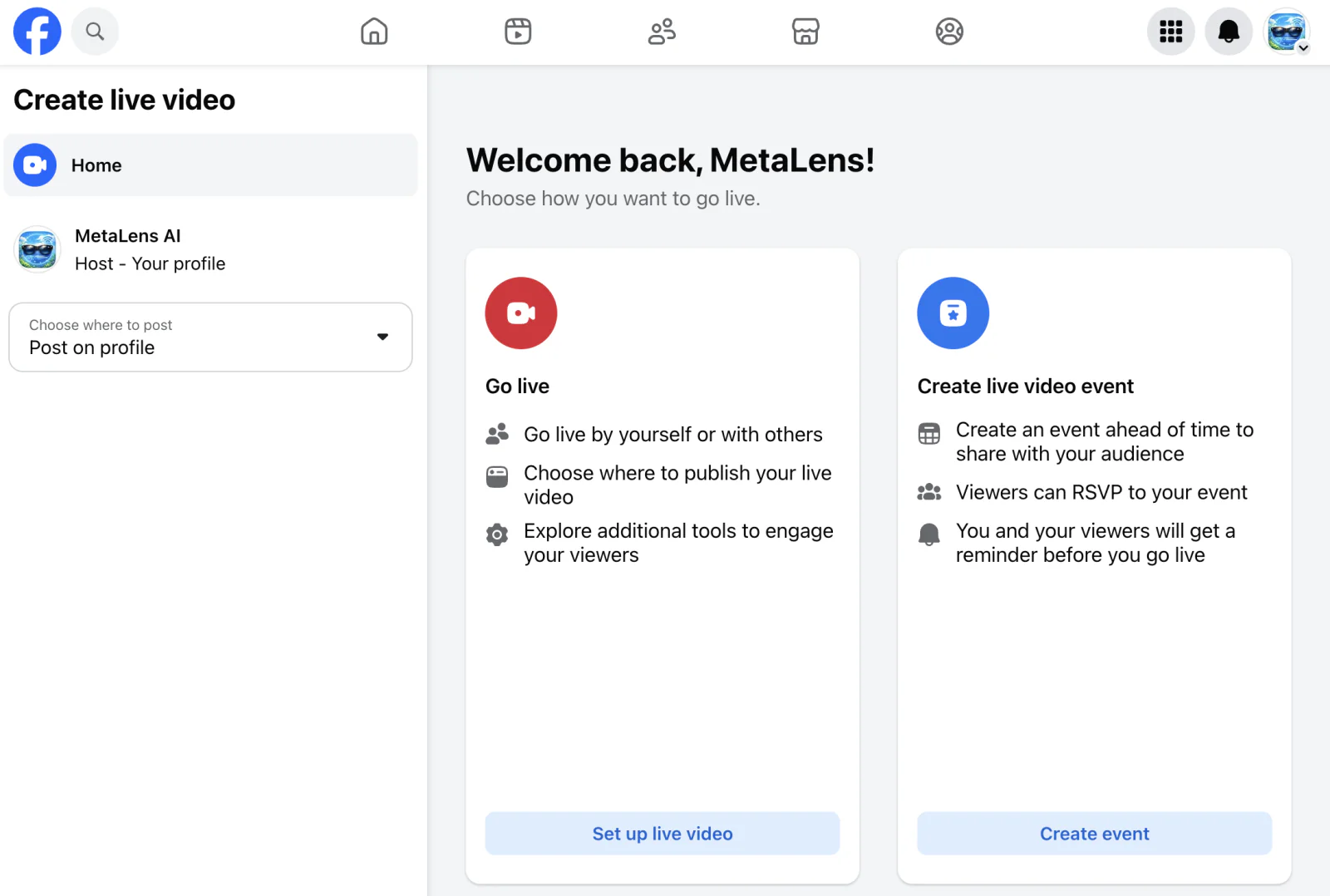
Facebook may show different labels or options depending on your account and language. The screenshots show the English interface.
Step 03 · On your computer
Choose Streaming software and copy your stream key
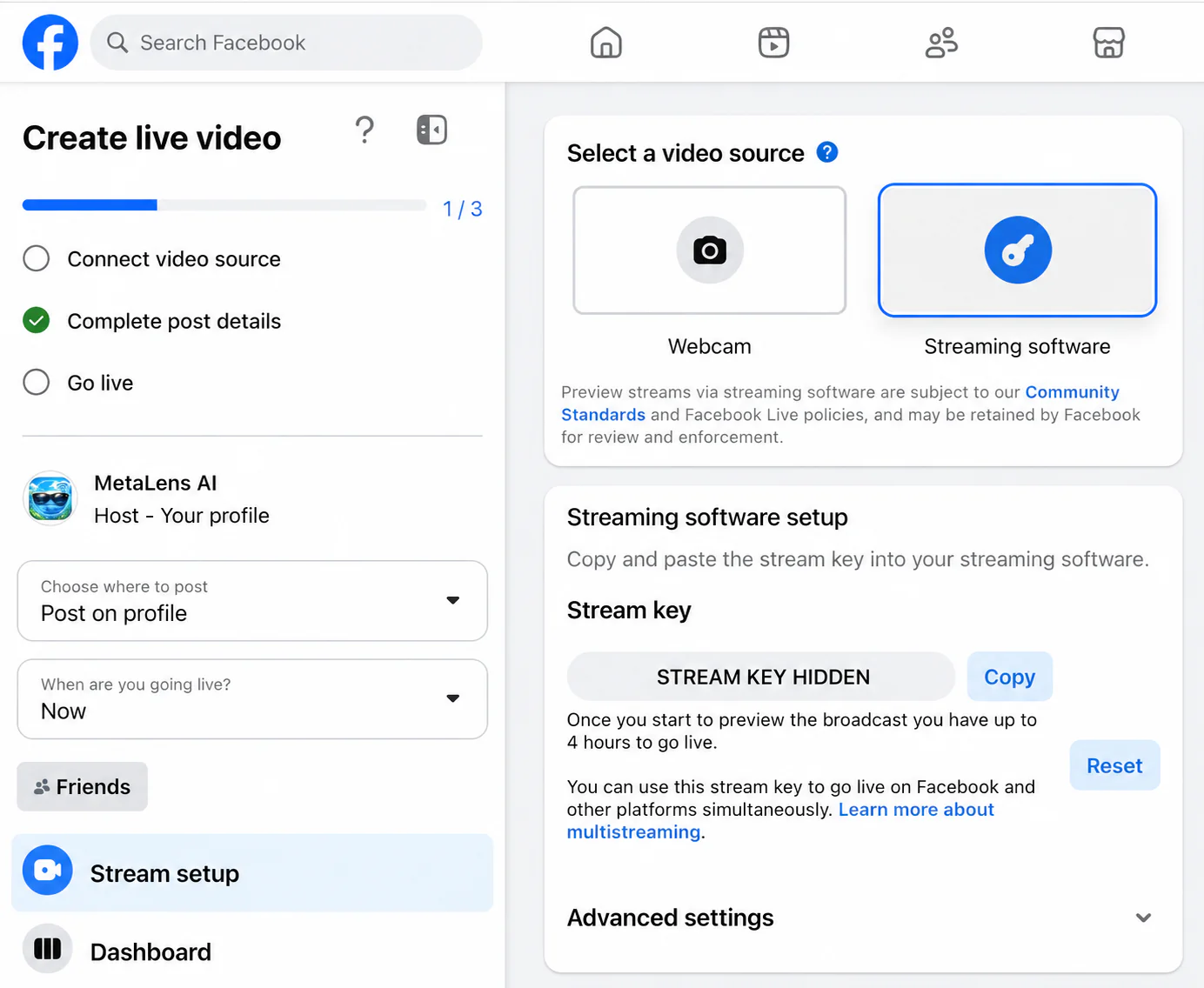
- On the Create live video screen, find Select a video source.
- Select Streaming software.
- In Streaming software setup, locate the Stream key field.
- Click Copy next to the key. Keep Live Producer open for the preview step.
Keep your stream key private. It authorizes a stream to your Facebook destination. Do not share it with anyone. If exposed, reset it in Facebook and save the new key in MetaLensAI.
Step 04 · Back on your phone
Paste the key into Facebook Stream Key
- Return to MetaLensAI → Settings → Streaming.
- Confirm that Facebook is selected as the streaming platform.
- Open the Facebook Stream Key field.
- Paste the key you copied from Facebook Live Producer and save.
Paste only the key, with no leading or trailing spaces. A Facebook profile link, Page URL or account password is not a stream key.
Step 05 · Phone + computer
Preview your glasses feed and go live
- Make sure your glasses are connected, then return to the MetaLensAI Home screen and start the live stream.
- In Facebook Live Producer, wait for the incoming video preview and check the picture and audio.
- Complete the post details. Check the destination, description and audience before publishing.
- When ready, click Go live in Facebook Live Producer and confirm that Facebook shows the broadcast as live.
- When finished, end the broadcast in Facebook and stop streaming in MetaLensAI.
A preview is not the public broadcast. Starting the feed in MetaLensAI sends video to Facebook. The Go live step in Live Producer publishes it to the audience you selected.
Troubleshooting Facebook streaming
Facebook does not show a video preview
Confirm that MetaLensAI is streaming, Facebook is the selected platform and Streaming software is selected in Live Producer. Copy the current stream key again, save it without extra spaces and restart the stream. Check the glasses connection and your phone’s internet access.
The key worked before, but not for this broadcast
Copy the key shown for the current broadcast in Live Producer. If you reset or changed the key in Facebook, replace the saved Facebook Stream Key in MetaLensAI as well.
The preview works, but viewers cannot see the stream
Check that you clicked Go live in Facebook, completed the required post details and selected the intended destination and audience. A broadcast set to a limited audience will not be visible to everyone.
The stream drops or Live Producer will not let me go live
For connection drops, keep the phone close to your glasses and use a stable network. If Facebook shows an account eligibility or permissions message, follow that message for the selected profile or Page. MetaLensAI does not grant Facebook Live access.
Facebook streaming FAQ
Can I stream Ray-Ban Meta glasses to Facebook without OBS?
Yes. Select Facebook in MetaLensAI and enter the stream key from Facebook Live Producer. MetaLensAI sends the glasses feed directly to Facebook; OBS is not required for this setup.
Where do I find my Facebook stream key?
On your computer, open Facebook Live Producer while logged in. Click Set up live video, choose Streaming software, then copy the value under Stream key.
Where do I paste the Facebook stream key in MetaLensAI?
Open MetaLensAI, go to Settings, find the Streaming section and select Facebook under Streaming Platform. Paste the key into Facebook Stream Key and save.
Why can I see a preview but my Facebook stream is not live?
The preview shows that Facebook is receiving your feed. Complete the post details, check your audience and click Go live in Live Producer to publish the broadcast.
What if Facebook is missing from the platform dropdown?
Check for a MetaLensAI update from the Home page of this website, then reopen Settings and look under Streaming Platform. Direct Facebook streaming is available from MetaLensAI v0.170.
Do I need a computer for this setup?
This guide uses a computer browser to open Facebook Live Producer, copy the stream key and manage the broadcast. MetaLensAI on your Android phone sends the video from your glasses.