
YouTube Streaming Guide
A step-by-step guide to set up YouTube live streaming with MetaLensAI and Meta smart glasses. Use the checklist and screenshots below for a stable stream.
Estimated setup time: 3-5 minutes.
Quick checklist before you go live
- Important: If this is your first time streaming with MetaLensAI, make sure your glasses are fully charged.
- Streaming is not recommended when your glasses battery is below 30%.
- Use a stable Wi-Fi or strong 5G connection for RTMP streaming.
- Keep your phone close to the glasses to avoid disconnects.
- Set Battery to "No restrictions" for MetaLensAI.
- Close heavy apps that might throttle network or battery.
Step 1 - Open YouTube Studio and start a live stream
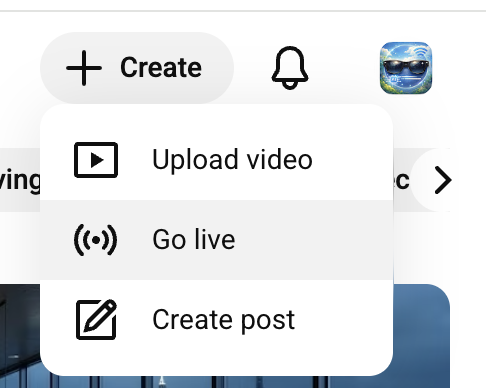
Open YouTube Studio in your browser and click Go live (or Create → Go live). Set a stream title and visibility.
Create the stream a few minutes early so all settings are ready before you start streaming.
Step 2 - Create your stream key
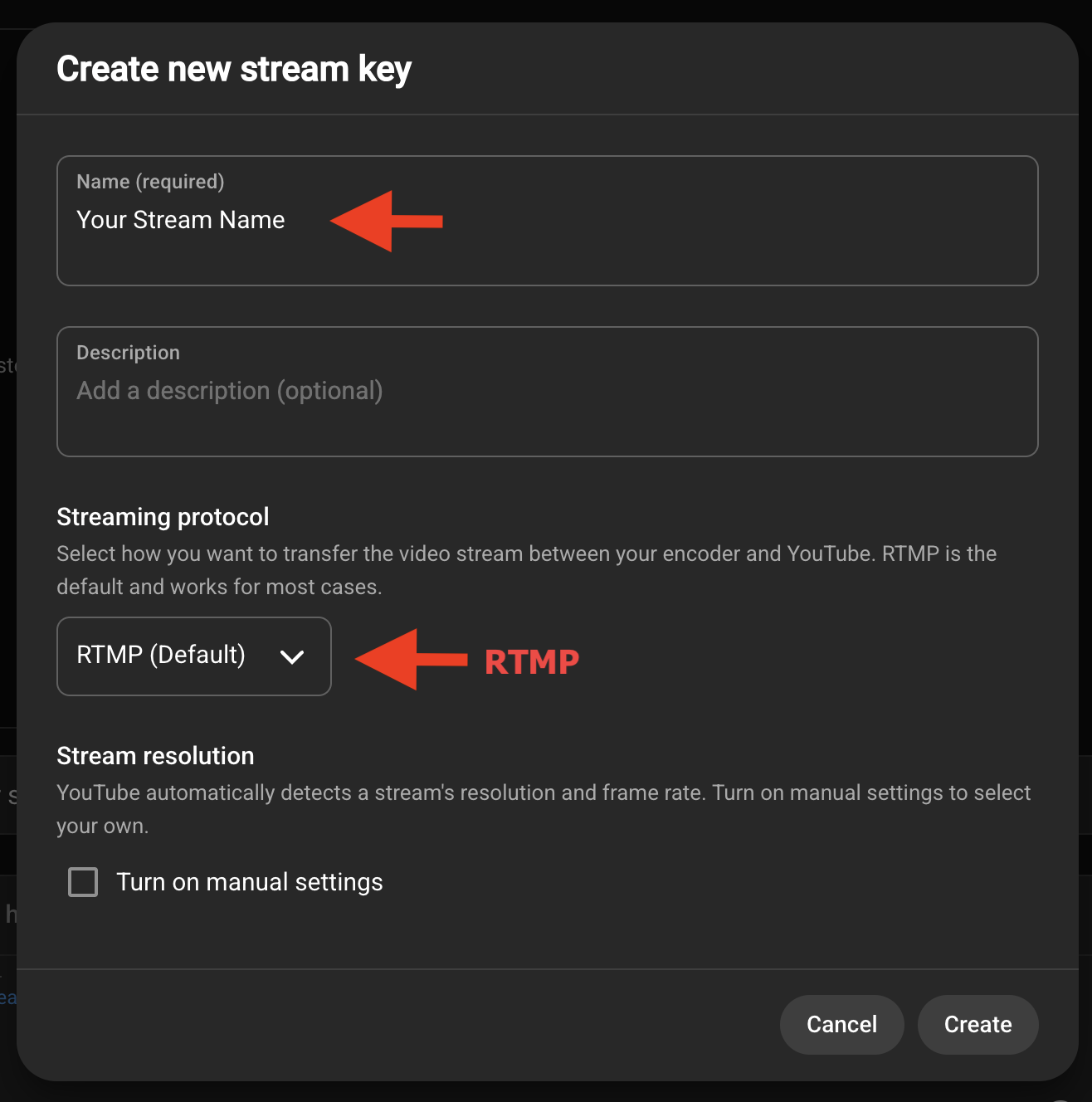
In YouTube Studio, open your stream and click Create new stream key from the dropdown in the preview player. Set the streaming protocol to RTMP (this is the only protocol currently supported by MetaLensAI), then fill in the form details and save.
Step 3 - Confirm the live stream in YouTube Studio
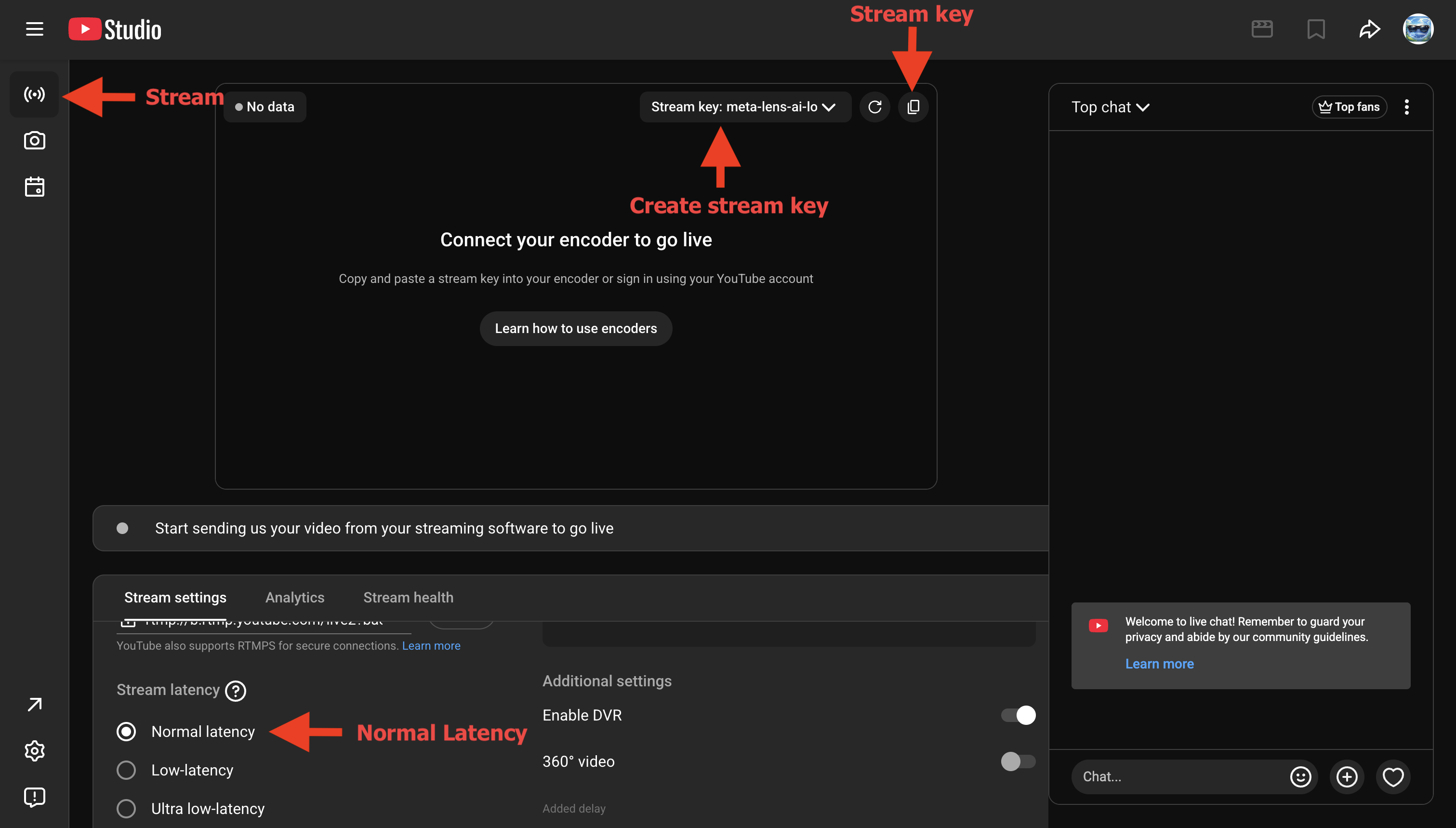
Review the stream title, visibility, and latency, then keep this page open. After you start streaming in MetaLensAI, return here to confirm the preview. Copy the stream key by clicking the icon marked on the right side of the screen.
If you want to keep your stream just for yourself, click Edit for an active stream and select Private in the stream Visibility options in YouTube Studio.
Step 4 - Go to App and Set Stream Key
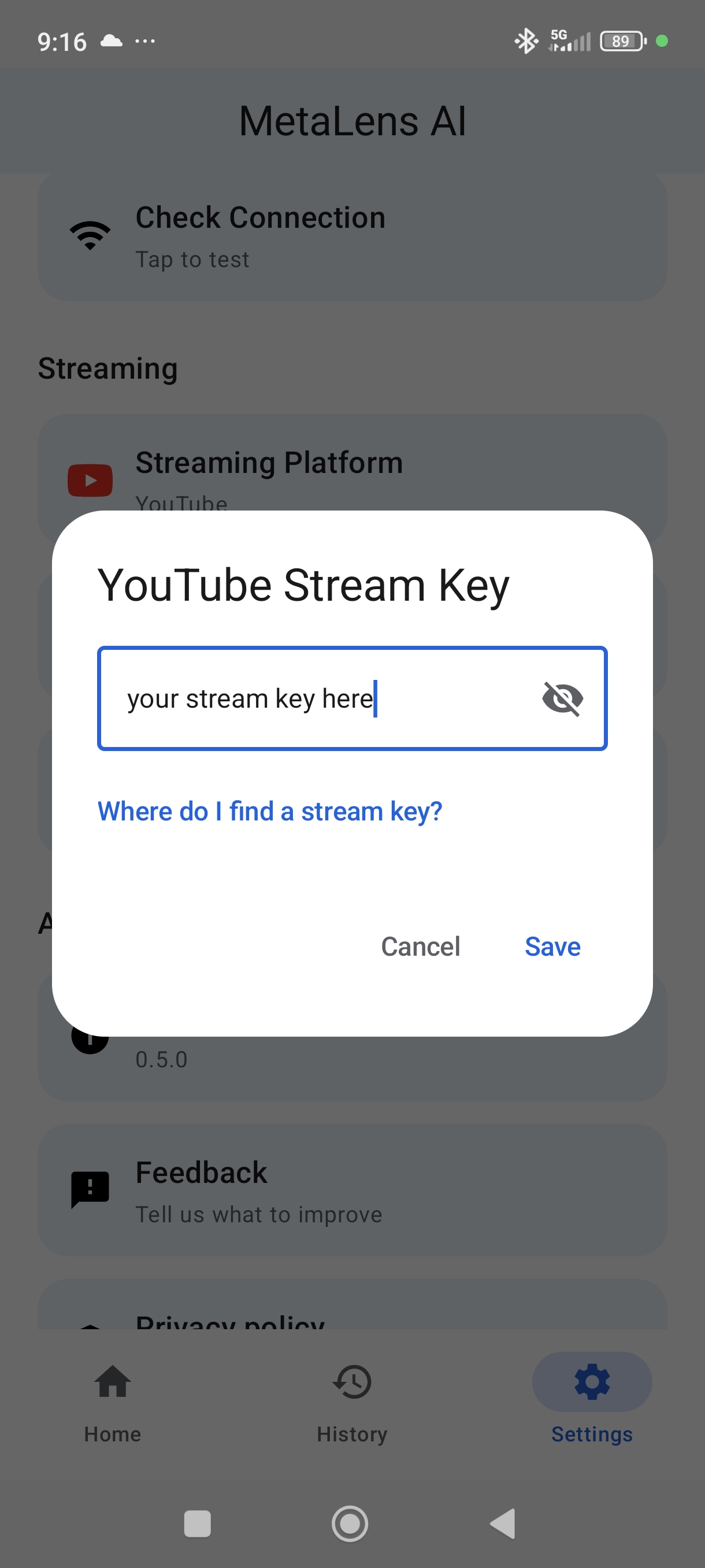
In MetaLensAI, open Settings, select YouTube under Streaming platform, and tap Save. Next, open YouTube stream key, paste the key you created, and tap Save.
Step 5 - Go live from MetaLensAI
Make sure that your glasses are connected and fully charged.
Keep the phone close to the glasses while streaming to avoid disconnects.
When you have provided the stream key, go to the Home screen in the MetaLens AI app and click Go Live on YouTube.
- Ensure your stream is live in YouTube Studio.
- When you go live, you should see the preview screen.
- Your glasses should say Experience started.
- You should see the session Streaming.
- Quality represent Camer Quality you chose in Settings.
- Follow the short video on the right to complete this step.
Recommended YouTube settings
- Latency: choose Normal for stability.
- Auto Start: enable it if you want YouTube to go live automatically.
Troubleshooting
- No preview? Wait up to a minute and confirm the stream key is correct.
- Stream drops? Move closer to your phone and switch to a stronger network.
- Audio issues? Check phone microphone permissions and reconnect the glasses.
- App stops in background? Re-check battery settings for MetaLensAI.
- Still stuck? Visit the FAQ or contact us.